Creating Your First Scouting Report
Ready to create your first scouting report? This guide walks you through the process.
Before You Start
Make sure you have:
- ✅ Created an account and logged in
- ✅ Set up at least one Grower and Farm (see Logging In & First Steps)
- ✅ At least one field uploaded or drawn
Step 1: Start From the Map
Scouting reports are started from a field on the Map tab, not from the Scout-Report tab directly (that tab is for viewing your existing reports).
- On the map, tap or click the field you want to scout
- In the field's action panel, select "Add New Scouting Report"
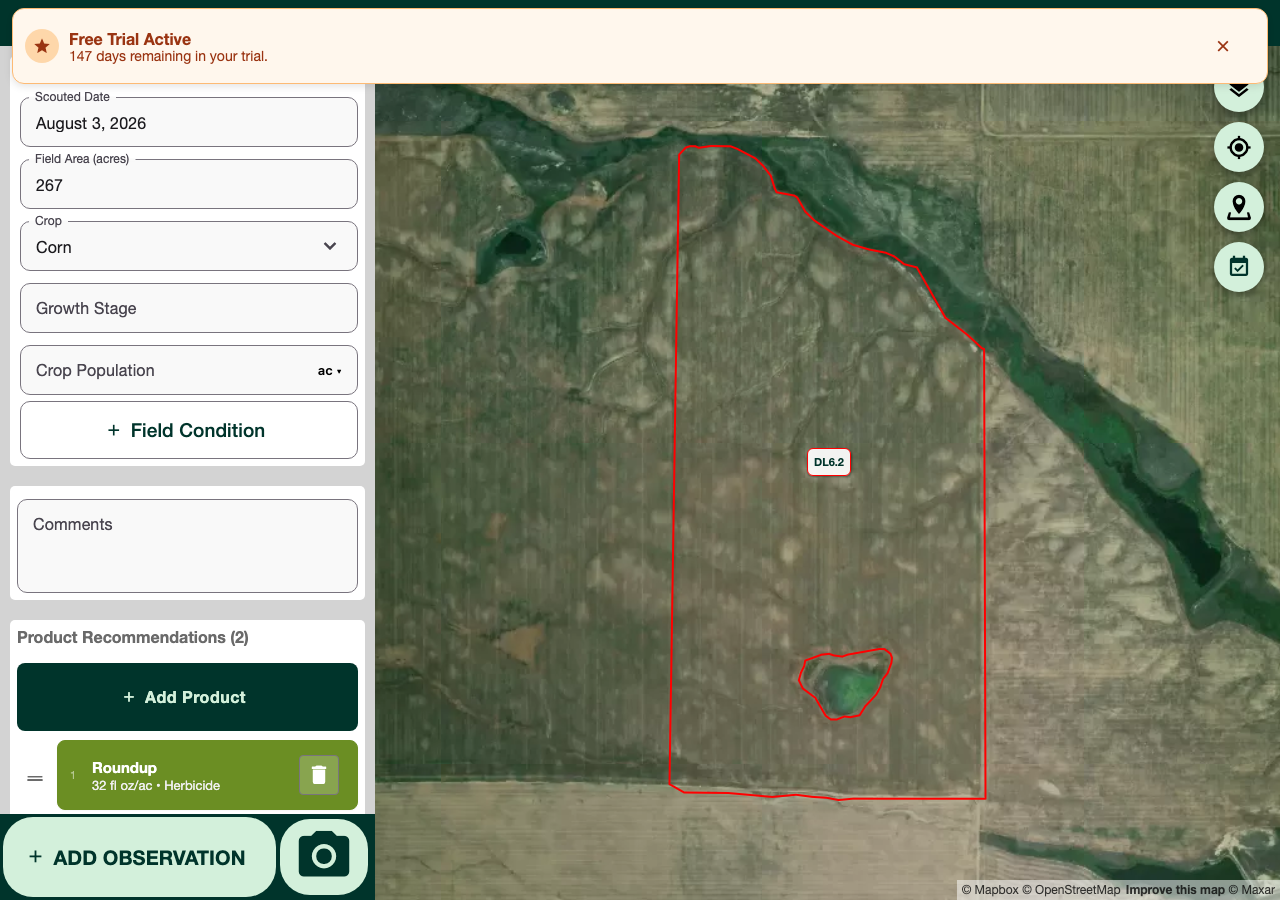
Step 2: Fill In Report Details
The report form opens with:
- Field - shown at the top, already selected from the map
- Scouted Date - defaults to today
- Field Area (acres)
- Crop and Growth Stage
- Crop Population - optional, with a unit picker (plants/acre, plants/hectare, etc.)
- Field Condition - optional quick-add note
- Comments
- Product Recommendations - add any products you're recommending
Step 3: Add Observations
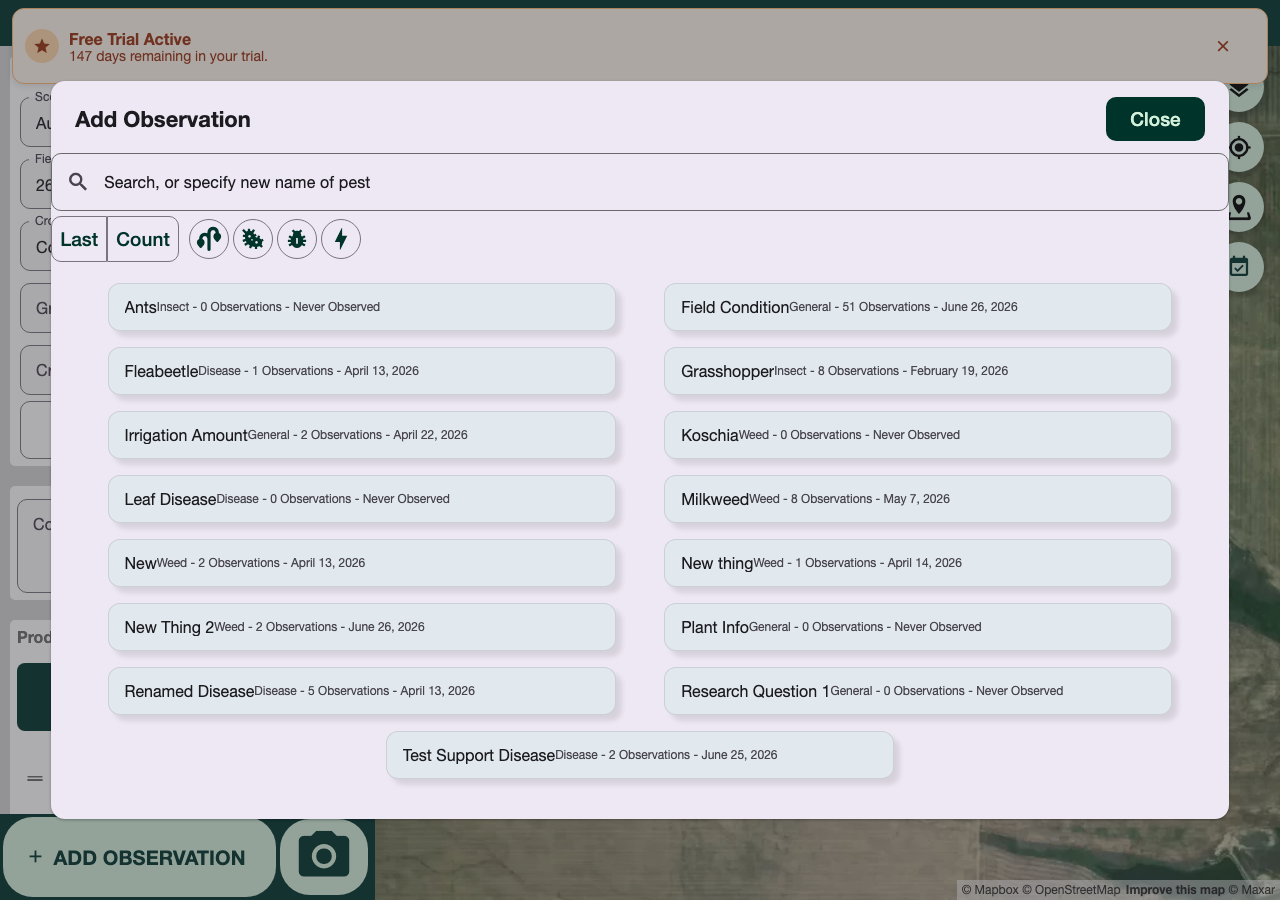
Tap "Add Observation" to search your organization's list of known weeds, insects, and diseases (each shows how many times it's been observed and when it was last seen), or type a new pest name that isn't in the list yet.
Observation Types:
- Weeds - Species, count/coverage, growth stage
- Insects - Type, count, damage description
- Diseases - Type, affected area, severity
- General - Crop health, water, soil, or other notes
Add photos and notes to each observation as needed, then save it — it's added to the report immediately.
Step 4: Save and Set Status
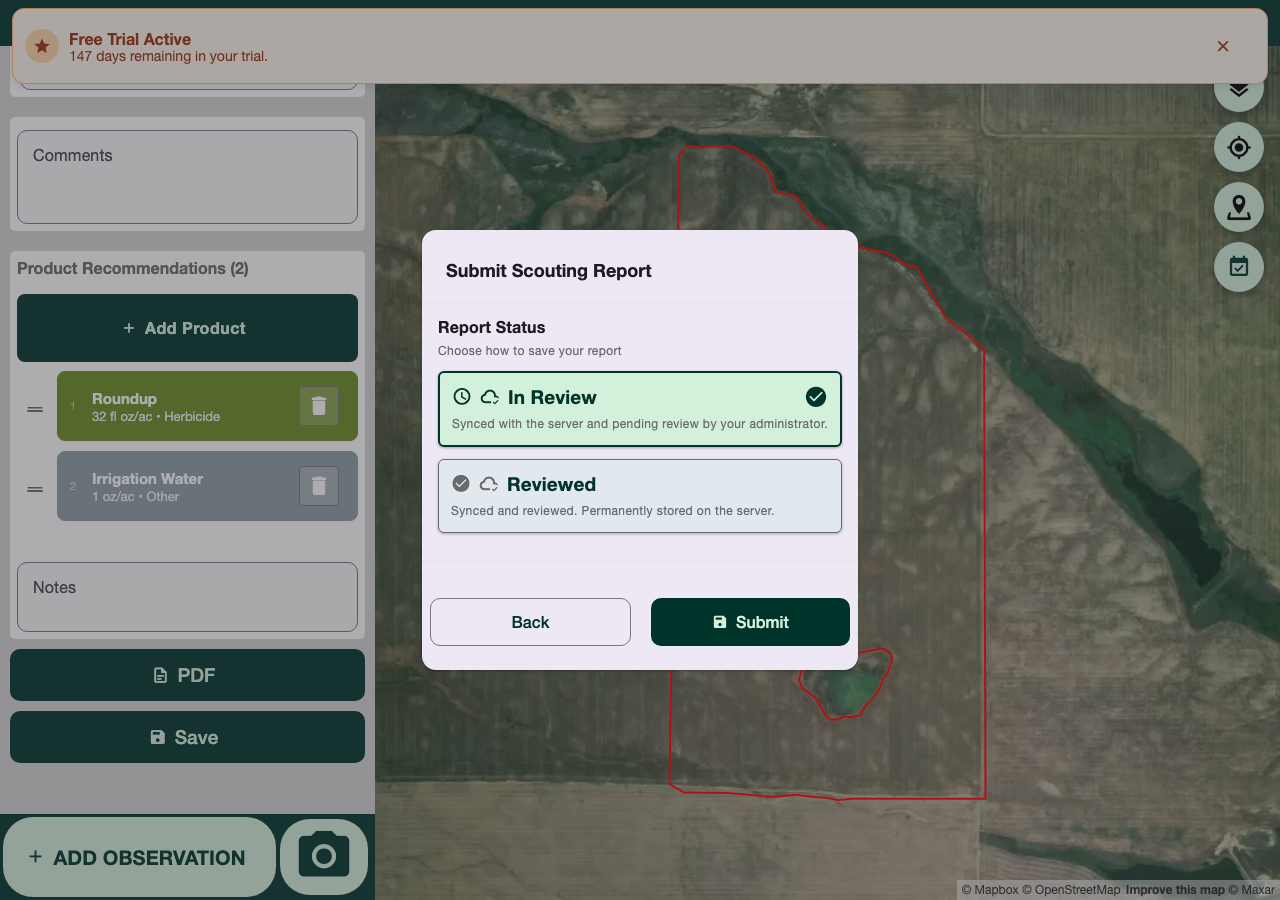
Click Save to bring up the Submit Scouting Report dialog, where you choose the report's status:
- In Review - Synced with the server and pending review by your administrator
- Reviewed - Synced and reviewed. Permanently stored on the server
The option matching your report's current status is pre-selected — pick the other one to advance it, or leave it as-is and click Submit to just save your changes. Click PDF (instead of Save) to generate a single-field PDF of the report as it currently stands, without changing its status.
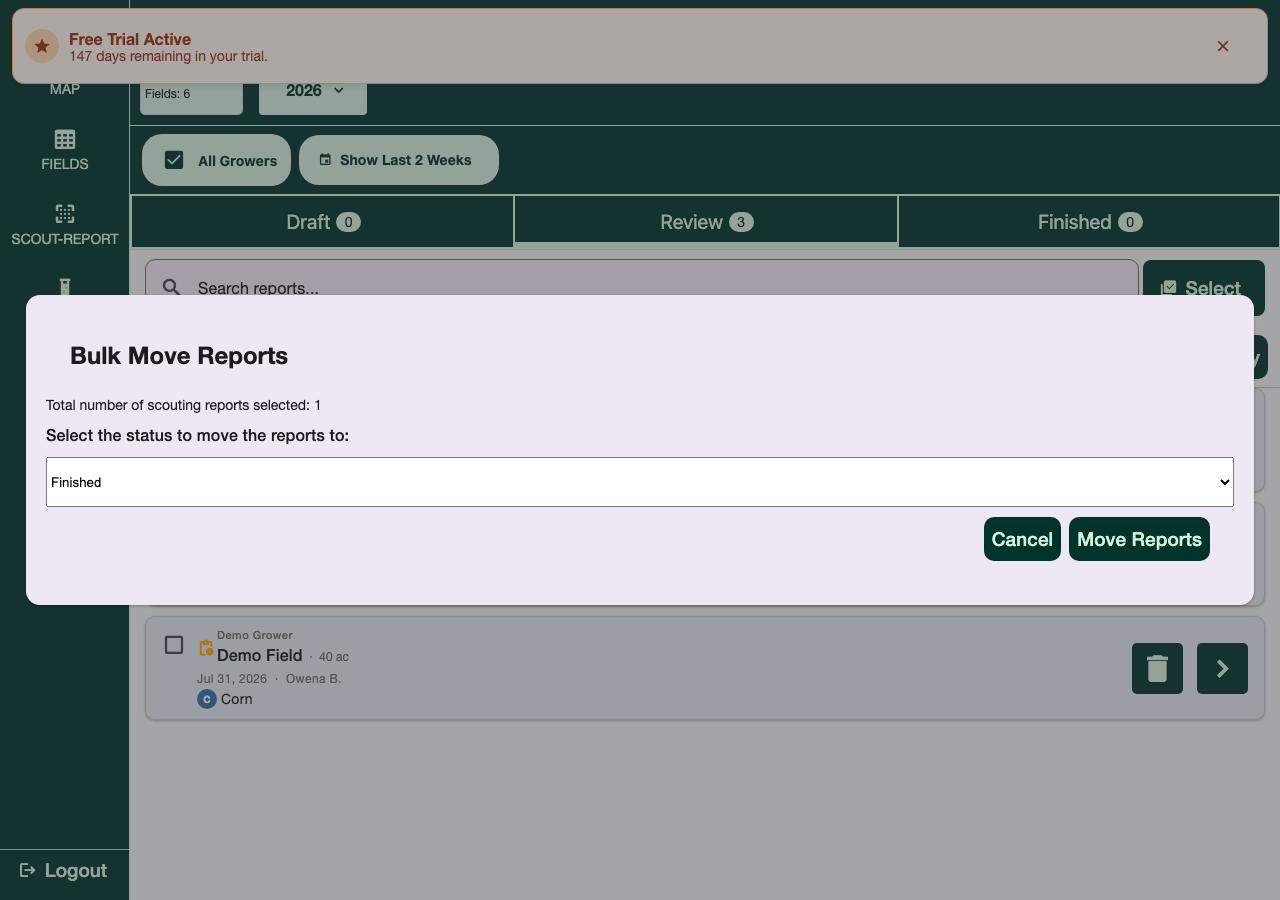
You can also change the status of one or more already-saved reports without opening them, from the Scout-Report list: click Select, check the report(s), then click Move and choose the new status.
Each report card also shows an optional "Status: Clear"-style pill — that's a separate health indicator (whether anything of concern was found), not the same as the report's Draft/Review/Finished workflow status.
Want to combine several reports into one document? See Summary Reports.
Tips for Better Scouting Reports
✅ Take clear photos of observations ✅ Be specific with crop damage descriptions ✅ Search for existing pests before typing a new name, to keep your organization's list clean ✅ Save often — you don't have to finish in one visit