Summary Reports
Combine multiple scouting reports into a single PDF document — useful for sending a grower or teammate a rundown of everything scouted across a day or across a field.
Creating a Summary Report
- Go to the Scout-Report tab and open the status list your reports are in
- Click Select
- Check the reports you want to include
- Click Summary
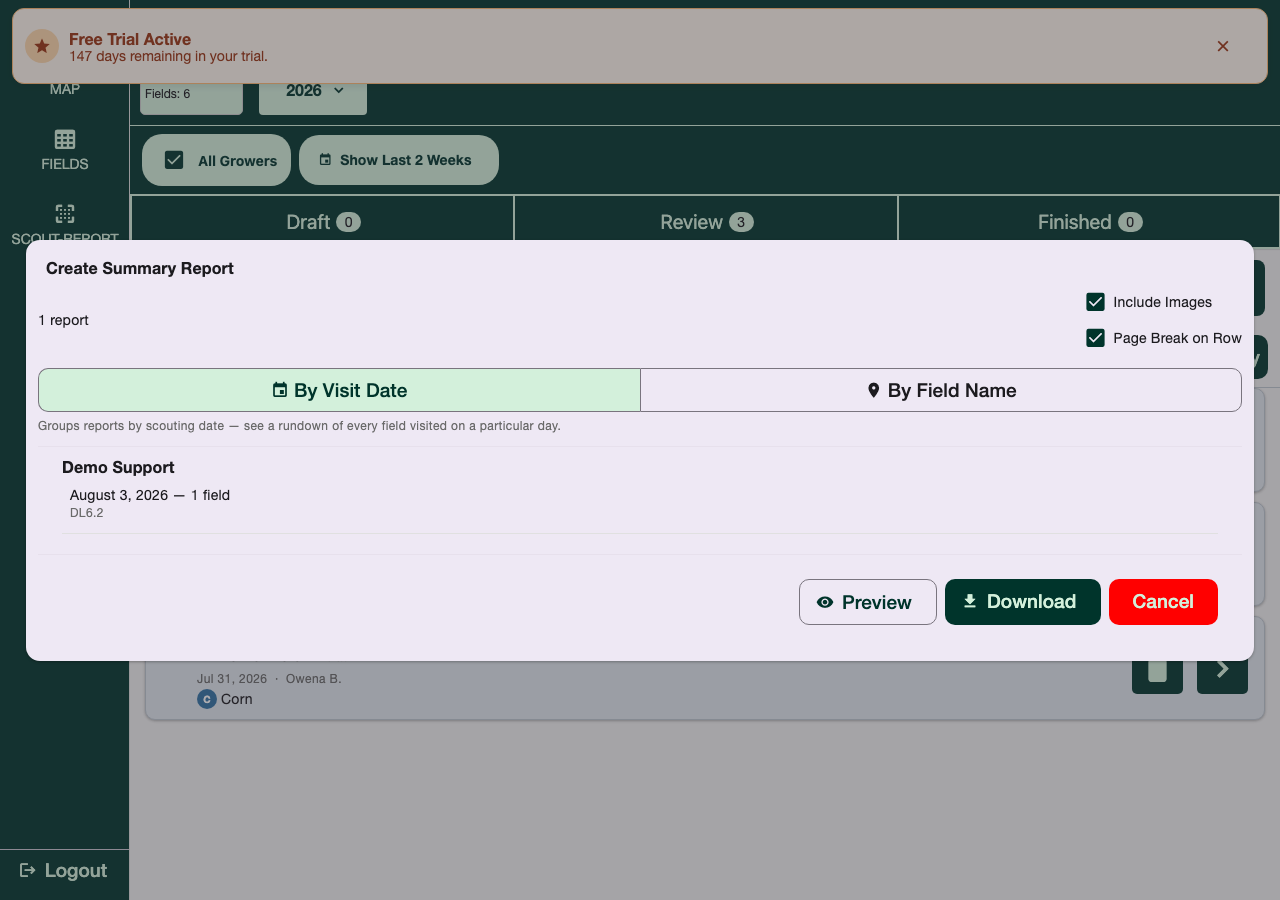
Options
- Group by Visit Date - see a rundown of every field visited on a particular day
- Group by Field Name - see every visit to a particular field over time
- Include Images - toggle whether observation photos are embedded in the PDF
- Page Break on Row - toggle whether each report starts on a new page
Preview or Download
- Preview shows the generated PDF inline, with a New Tab option if your browser doesn't support inline preview, and its own Download button
- Download saves the PDF directly without previewing it first
The filename is generated automatically from the grower, date, and field count — for
example Rim_Rock_Colony_2026-8-5_1_field_Scouting_Summary.pdf.