Field Management
Organize your agricultural operation with a structured hierarchy: Organization → Grower → Farm → Field.
Understanding the Hierarchy
- Organization - Your company or team (created when you sign up)
- Grower - A farmer or producer you work with
- Farm - A specific farm owned by a grower
- Field - A specific field within a farm
This structure keeps your data organized and makes it easy to manage multiple growers and farms.
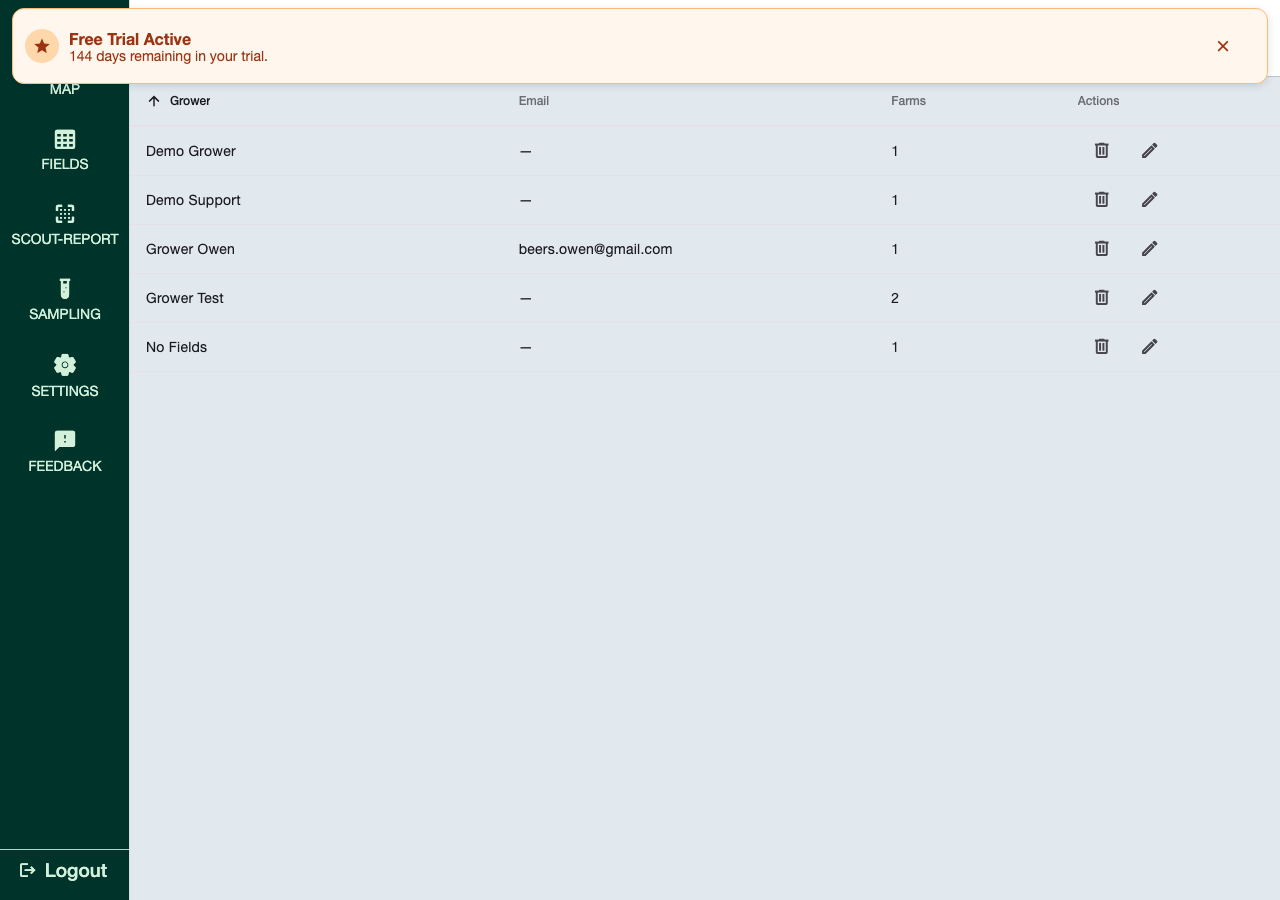
Creating a Grower and Farm
A grower always needs at least one farm, so they're created together in one step:
- Go to Settings → Manage Growers, and click Add Grower
- Enter a Grower Name, a Farm Name, and optionally a Grower Email (used to auto-fill as a recipient on scouting reports for that grower)
- Save
You can add more farms to an existing grower afterward from the same Manage Growers page.
Managing Fields
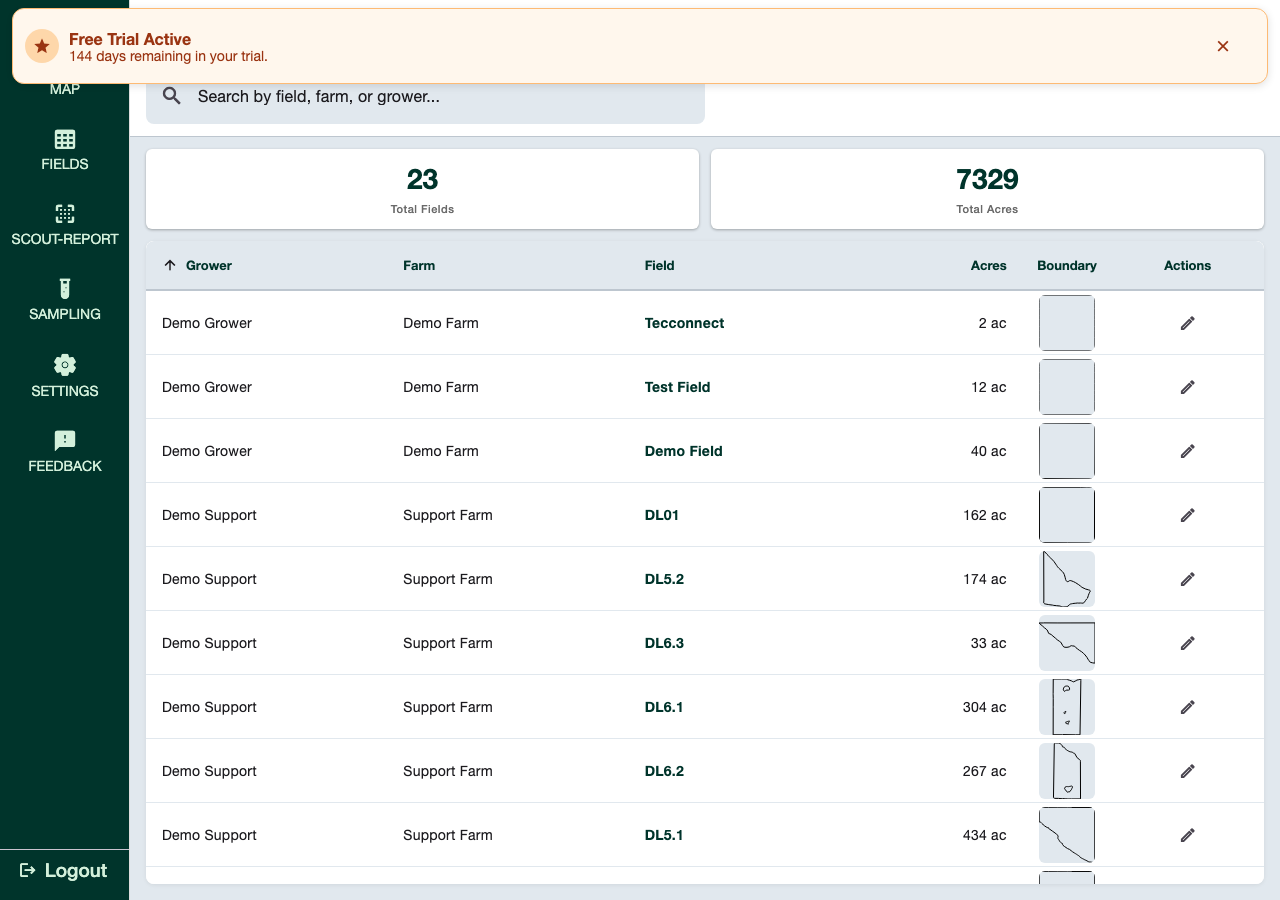
Add a New Field
Every field needs a drawn (or uploaded) boundary — there's no way to add a field without one. Two ways to get the boundary in:
Option 1: Draw on Map
- Use the map's drawing tool to trace the field's boundary, point by point
- Close the shape
- Fill in the Create Field form: Grower, Farm, Field Name, and optionally a Legal Description
- Save — acreage is calculated automatically from the boundary you drew
Option 2: Upload Shapefile
- Upload a shapefile boundary instead of drawing one
- Fill in the same Create Field form (Grower, Farm, Field Name, Legal Description)
- Save
Crop assignment happens separately, after the field exists, via Crop Planning from the field's action menu on the map.
Edit Field Details
Select the field and edit it to change its Grower, Farm, Field Name, or Legal Description. To change the boundary itself, see Editing Boundaries below.
Field Metadata
| Field | Notes |
|---|---|
| Crop Type | Assigned separately via Crop Planning, not on the field itself |
| Acres | Calculated automatically from the drawn/uploaded boundary |
| Planting Date | Tracked per crop planting (part of Crop Planning) |
Field Boundaries
Viewing Boundaries
- On the Map, field boundaries appear as colored polygons
- Tap a boundary to select that field
- Zoom in/out to see field details
Editing Boundaries
- Tap the field boundary on the map
- Select "Edit Boundary" or "Edit"
- Drag existing points to move them
- Add new points by tapping the boundary
- Delete points by tapping and selecting "Delete"
- Save
Uploading Boundary Files
You can upload a shapefile boundary instead of drawing one by hand. After it loads, fill in the same Create Field details (Grower, Farm, Field Name, Legal Description) and save.
Team Access
Fields belong to your organization, not to an individual user — anyone in your organization with access to a grower/farm can see and scout its fields. There isn't a separate per-field sharing/permissions setting; access is controlled at the account level (see Permissions & Access).