Team Management
Manage the people in your organization from Settings → Organization.
Only your organization's Admin (Org Admin — there's exactly one per organization) can add, edit, or deactivate users.
User Roles
| Role | What They Can Do |
|---|---|
| Organization Admin | Full access, including organization settings and user management. Exactly one per organization. |
| Agronomist | Creates and manages scouting reports and recommendations |
| Scout | Records field observations |
| Grower | Views reports and data for the specific grower(s) they're assigned to |
There's no email-invite flow — an Organization Admin creates each account directly and sets its initial password.
Adding a Team Member
- Go to Settings → Organization
- Click Add User
- Enter their First Name, Last Name, Email, and a Password
- Choose an Account Type: Scout, Agronomist, or Grower
- Click Add
Since there's no invite email, you'll need to tell the new user their password yourself — write it down before saving. You can always change it later from Manage User if it gets lost.
The person can log in immediately with the email and password you set.
Creating a Grower Account
A Grower account is different from a Grower record (the customer/farmer entries you manage under Manage Growers) — a Grower account is an actual login that lets that grower see their own data in GroundedAg.
To create one:
- Make sure the grower already exists as a record — if not, create it first under Settings → Manage Growers (see Field Management)
- Go to Settings → Organization and click Add User
- Fill in their name, email, and password as usual
- Select Grower as the Account Type
- Under Assign to Grower, pick which grower record this account should see data for — this is required for Grower accounts
- Click Add
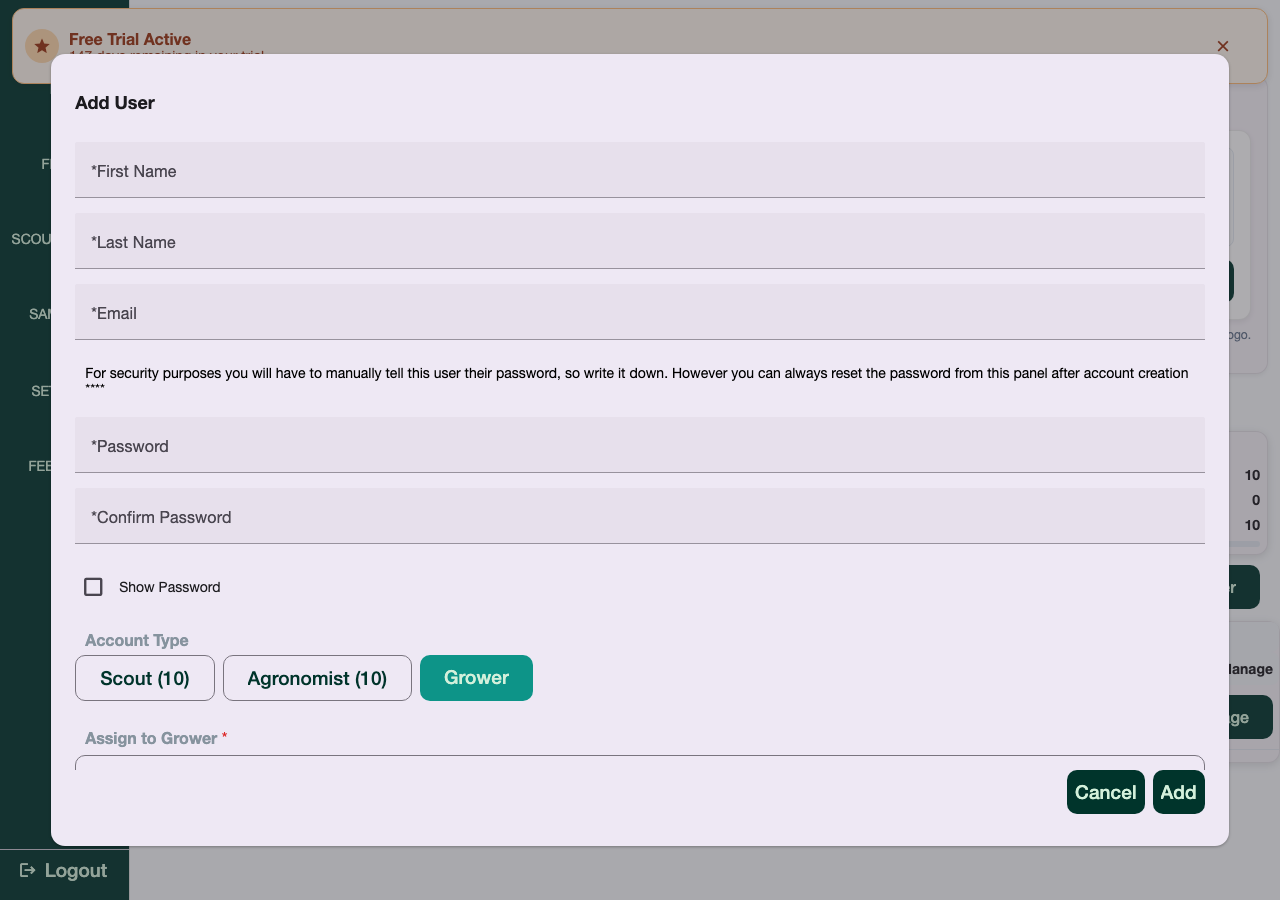
That user will only see reports and fields belonging to the grower they're assigned to, not your whole organization.
Editing a User
- Go to Settings → Organization
- Select the user to open Manage User
- Update their name, email, password, or account type as needed
- Save
For a Grower account, you can reassign which grower record they see by clicking Change next to their current grower, or manage their farm-level access via Farm Access. You can't switch an existing Scout or Agronomist account to Grower (or vice versa) — the Grower account type can only be set when the user is first created.
Deactivating a User
Users aren't deleted — they're deactivated, which revokes their access while keeping their historical reports and data intact.
- Go to Settings → Organization
- Select the user to open Manage User
- Toggle their status to Deactivate
- Save
Toggle it back to Set to Active to restore access later.