Scouting Reports
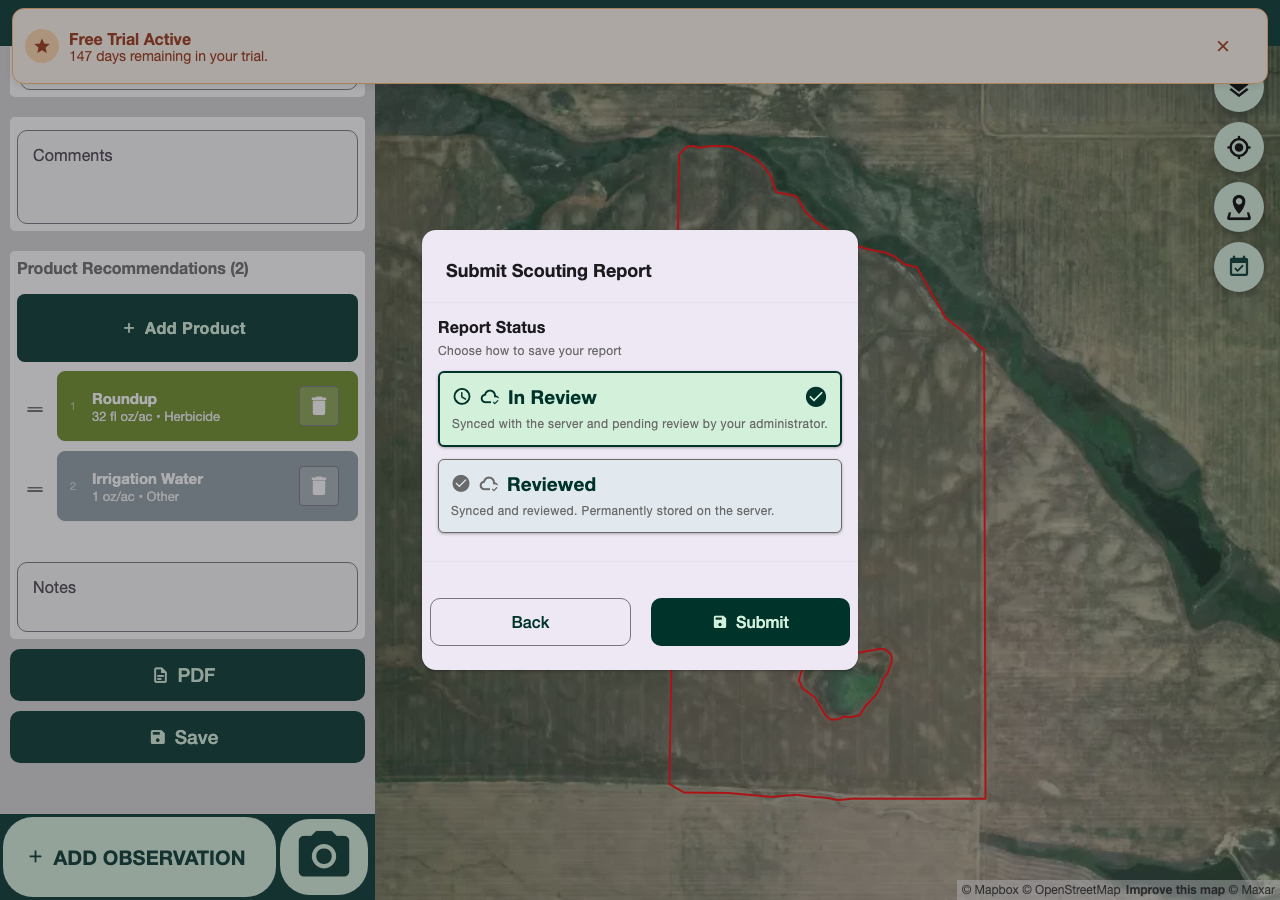
Scouting reports are the core of your GroundedAg workflow. Document detailed observations of your fields with photos, notes, and precise geospatial data.
What is a Scouting Report?
A scouting report is a snapshot of a field's condition at a specific time. It contains:
- Date & Time - When the scout was in the field
- Field - Which field was scouted
- Observation Locations - Marked points on the map
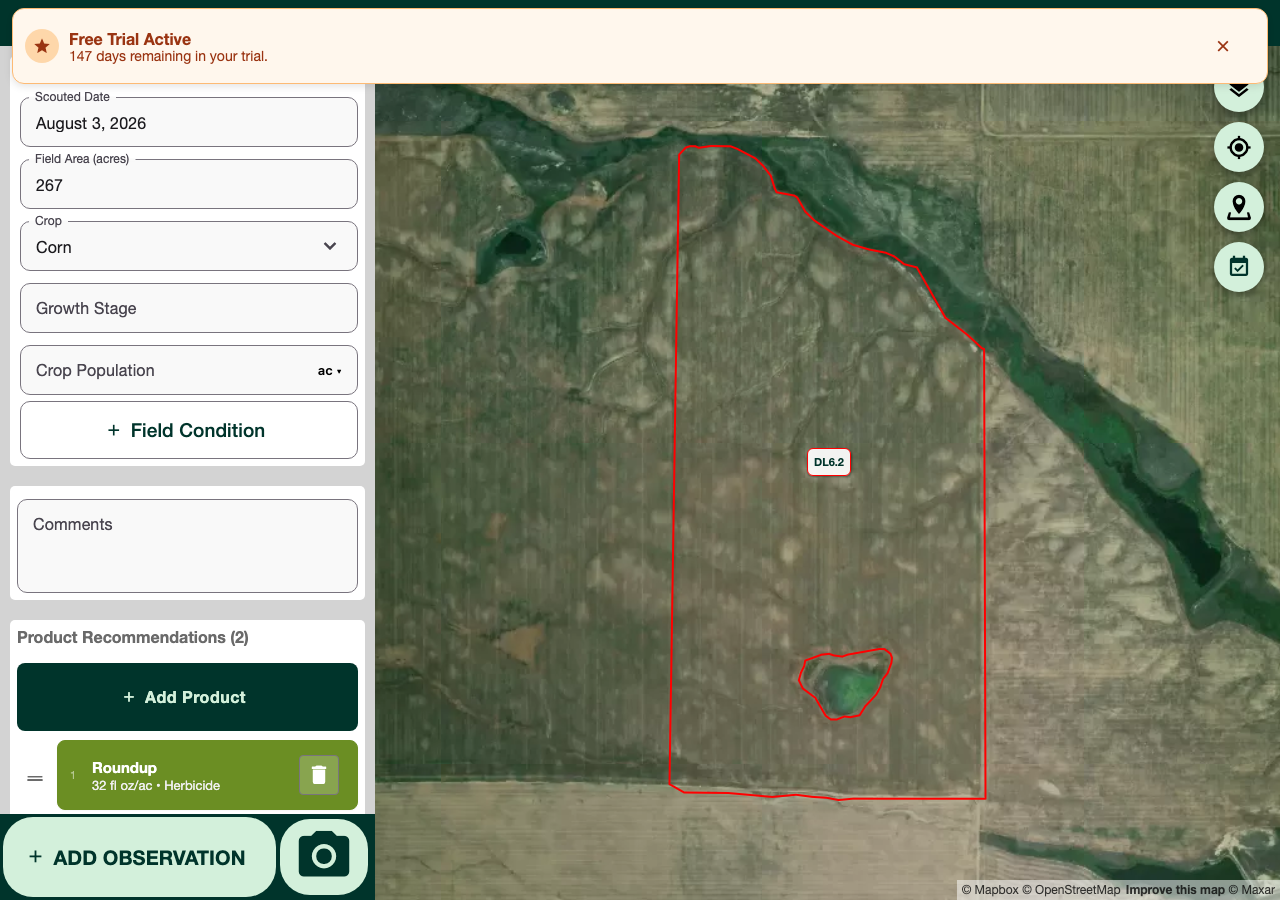
- Observations - Details about weeds, insects, diseases, or general conditions
- Photos - Visual documentation
- Notes - Additional context or recommendations
Creating a Scouting Report
See Your First Scouting Report for a detailed walkthrough.
Quick summary:
- On the Map tab, tap the field you want to scout
- Select "Add New Scouting Report" from the field's action panel
- Fill in report details (date, crop, growth stage, etc.)
- Tap "Add Observation" for each weed, insect, disease, or general note, with photos
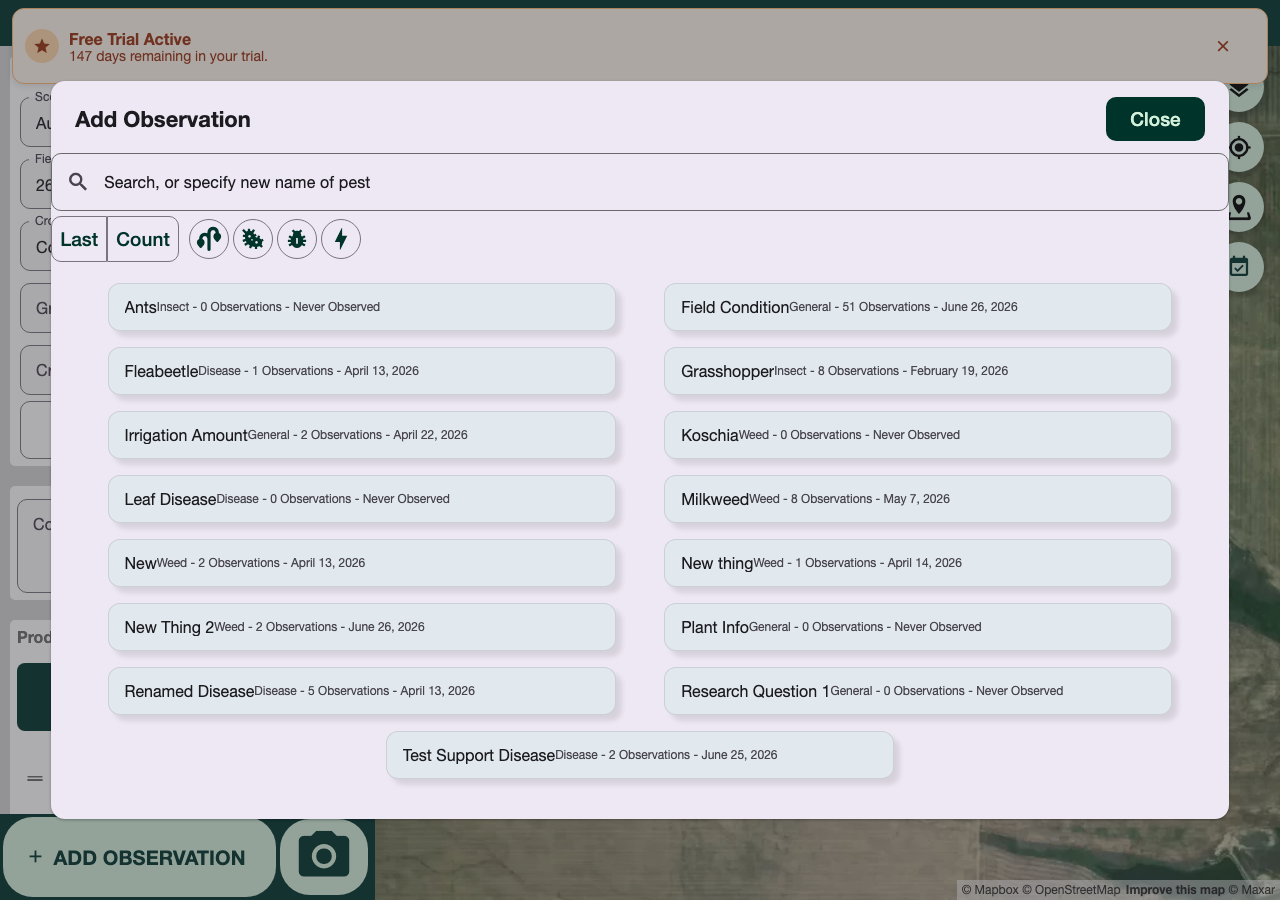
- Click Save, choose the report's status, and submit
Types of Observations
Weeds 🌱
- Record weed species (common or scientific name)
- Estimate count or percent coverage
- Note stage of growth (seedling, rosette, bolting, etc.)
- Add photos for identification
Insects 🐛
- Identify insect type (beneficial or pest)
- Count or estimate population
- Describe damage (leaf damage, tunneling, etc.)
- Note if control action was taken
Diseases 🦠
- Identify disease name and symptom type
- Estimate percent of plants affected
- Describe symptoms (spots, wilts, blight, etc.)
- Note environmental conditions (wet, humid, etc.)
General Observations 📋
- Crop health and vigor
- Water/irrigation status
- Soil conditions
- Weather impacts
- Fertilizer or treatment applications
- Any other relevant notes
Report Status
Reports move through three stages, shown as tabs on the Scout-Report list:
| List tab | Description |
|---|---|
| Draft | Still being edited, not yet saved with a status |
| Review | Synced with the server and pending review by your administrator |
| Finished | Synced and reviewed — permanently stored on the server |
Changing Report Status:
Click Save on an open report to bring up a Submit Scouting Report dialog, where you choose In Review or Reviewed (the option matching the report's current status is pre-selected).
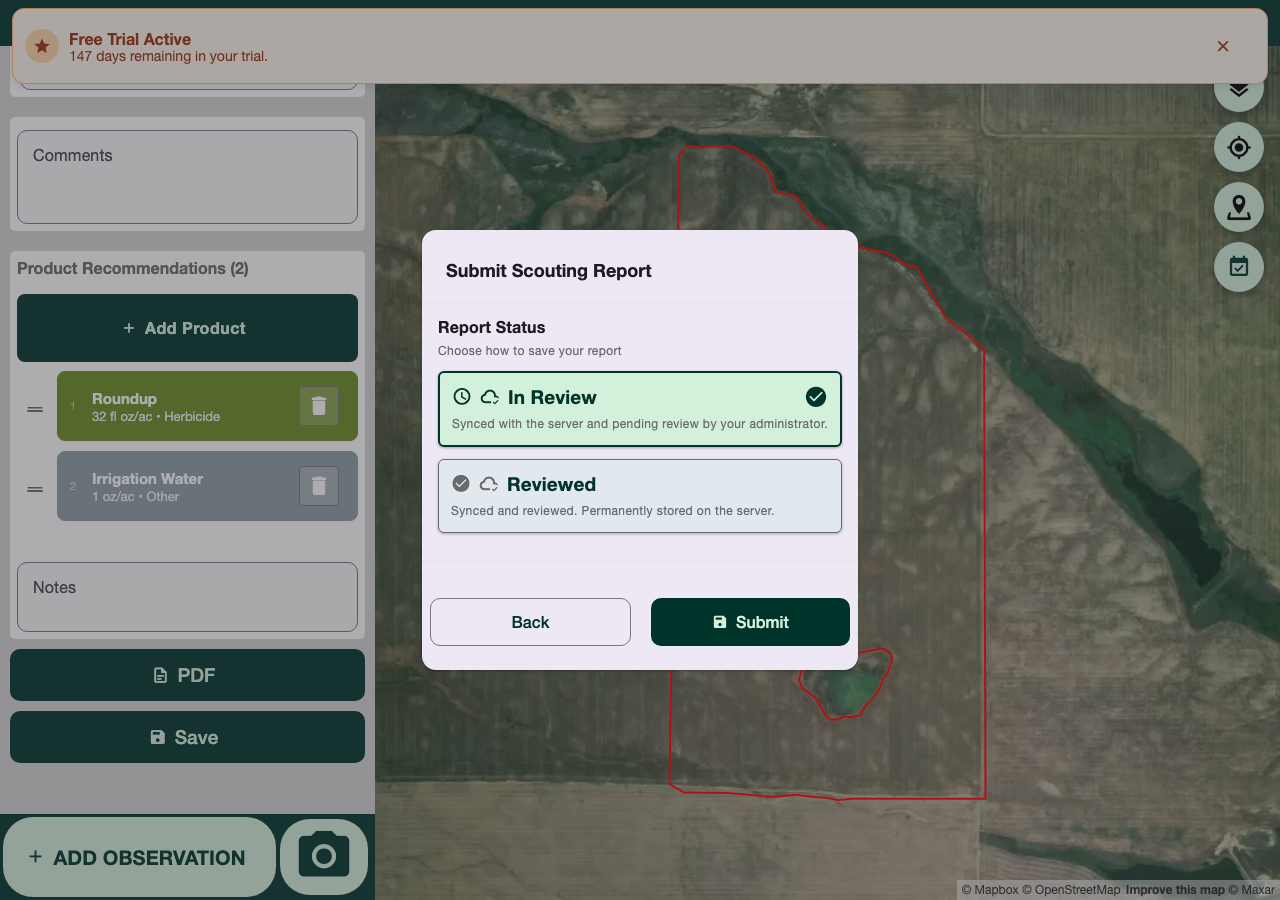
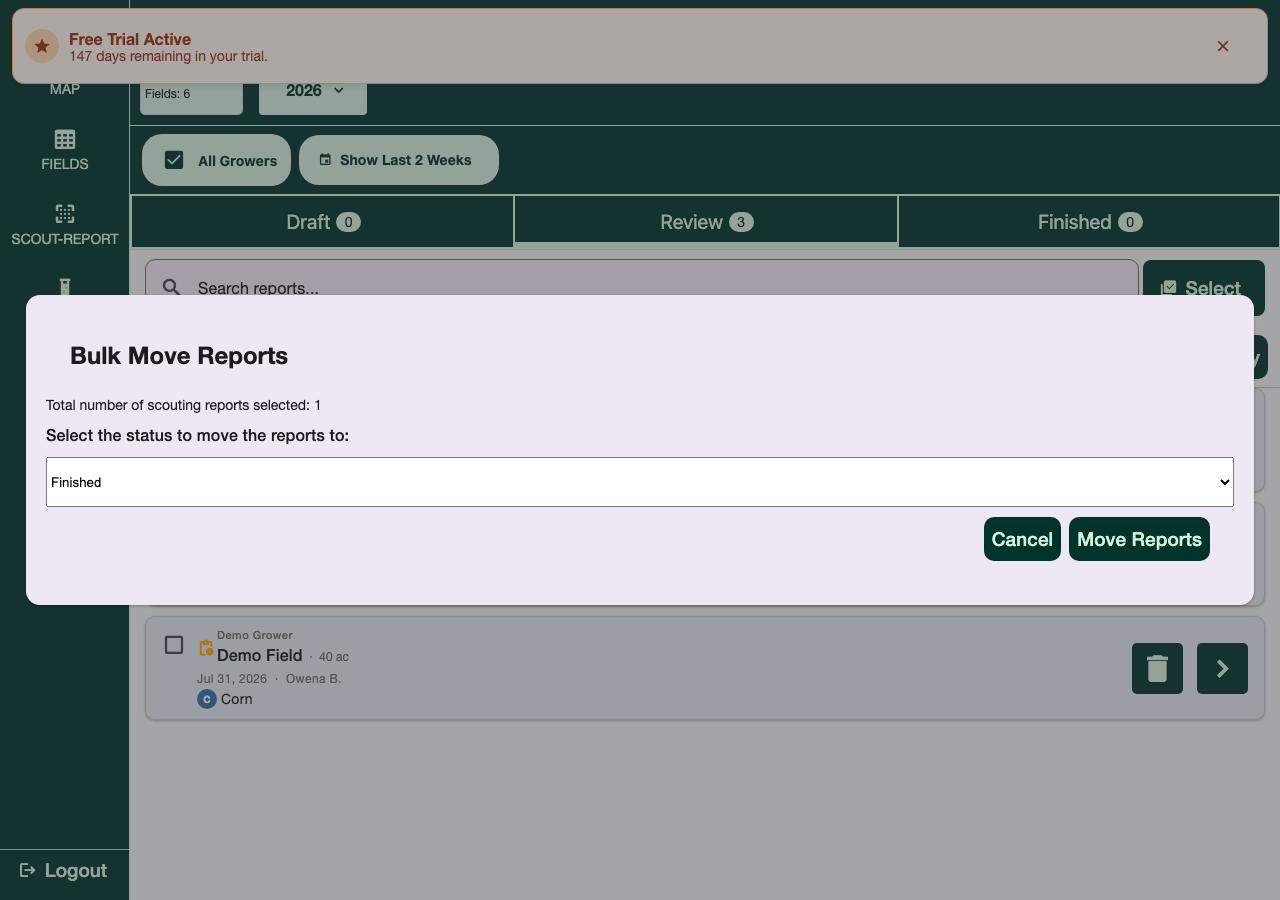
You can also change the status of already-saved reports in bulk from the list: Select → check reports → Move → choose a status.
Each report card can also show a separate "Status: Clear"-style pill — that's a health indicator (whether anything of concern was found), not the same as the workflow status above.
Editing & Deleting Reports
Edit a Report:
- Find the report in your Scout-Report list
- Click the chevron (›) on its card to open it
- Modify observations, add photos, or change details
- Save your changes
Delete a Report:
Click the trash icon on the report's card in the list, then confirm deletion.
Deleted reports cannot be recovered. Be sure before confirming.
Photos in Reports
Adding Photos:
- Tap "Add Photo" while recording an observation
- Choose "Camera" (take new photo) or "Gallery" (existing photo)
- Crop or annotate the photo if desired
- Save
Photo Best Practices:
✅ Take clear, well-lit photos from multiple angles ✅ Include a size reference (hand, ruler, or field marker) ✅ Focus on the affected area ✅ Capture both wide and close-up shots
Photo Permissions:
- Mobile: Grant camera and photo library permissions
- Web: Use file browser to select images
Collaboration
If your organization has multiple scouts, everyone with access to a grower/farm can see each other's reports in the Scout-Report list — useful for admins reviewing a team's work or scouts checking what's already been covered.
Exporting Reports
Click PDF on an open report to generate a formatted single-field PDF. To combine multiple reports into one document, see Summary Reports.